

Annapurna Bhandar Apply Online 2026 has now started in West Bengal, and many people are trying to understand how the new online application process works. If you are also searching for the correct way to fill out the form, register on the portal, and add family members properly, this guide will help you step by step.
Under this scheme, eligible women may receive financial assistance of Rs. 3000 per month through DBT in their Aadhaar-linked bank accounts. Because of this, many families want to complete the application correctly without making mistakes in the form.
Another reason for the confusion is that many people were familiar with the earlier Lakshmir Bhandar portal, while the current system is now being used through the Annapurna Bhandar or Annapurna Yojana portal. So naturally, a lot of applicants are now looking for the updated method to apply online.
In this article, we will explain the complete Annapurna Bhandar online form fill-up process in a simple and practical way. We will show each important step with images so that even first-time users can understand how to move forward without confusion.
One important thing to understand is that this is now a family-level application process. In many cases, one head of the family can start the application, and then other eligible members of the same family can be added under that family record.
For example, if one person is treated as the head of the family, then eligible women in that household, such as the wife, daughter, or daughter-in-law, may be included through the same family application structure. This makes the process easier because the family details can be managed together instead of starting everything separately again and again.
So, if your family has multiple eligible women, this guide will help you understand how that can be handled in the same application process. We will explain how to register, how to log in with mobile number and OTP, how to start the form, and how to add family members step by step with images.
If you are comfortable using the internet, you may be able to complete the process yourself from home by following this guide carefully on the West Bengal social security portal. If not, you can also visit a nearby cyber cafe and complete the application with assistance.
Before starting, it is always a good idea to keep your important details and documents ready. That makes the form fill-up process much easier and saves time while applying. In the next section, we will explain exactly what you should prepare before starting the Annapurna Bhandar online application step by step process.
Before applying ready this doccuments.
Before you start the Annapurna Bhandar online application, it is a good idea to keep all important family documents ready in one place. If you prepare everything in advance, the form fill-up process becomes much easier, faster, and less stressful.
Try to collect the key documents of all family members first. These include voter card, Aadhaar card, digital ration card, PAN card, Swasthya Sathi card, and other useful records or files that may be needed during the application process. When all documents are ready beforehand, you can complete the online form without stopping again and again to search for missing details.
It is also very important to scan the Aadhaar card and voter card of all family members before starting the application. Keep the scanned files saved on your mobile phone, laptop, or computer in PDF or JPEG format, and make sure each file stays within the required size limit if the portal asks for compressed uploads. If needed, you can reduce the file size in advance by using an image compressor or file resizer so that uploading becomes easier and saves time during the application.
You should also keep one active mobile number ready, because it may be needed for login with OTP and for future SMS updates related to the Annapurna Bhandar scheme. Try to use a phone number that stays active and available, so you do not miss any important message during registration or later communication.
If possible, make sure the mobile number linked with Aadhaar is active and accessible. Along with that, it is also helpful to keep the contact numbers of all family members ready, because family-level applications may require correct personal and contact details while adding each member.
In simple words, if you prepare all family documents, scanned copies, and mobile numbers before opening the portal, the Annapurna Bhandar online application process will become much smoother and more time-saving. In the next step, we will explain how to register on the portal and begin the actual form fill-up process.
Documents Required Before Applying
- Aadhaar card of all family members.
- Voter card of all family members.
- Digital ration card.
- PAN card, if available.
- Swasthya Sathi card, if available.
- Scanned Aadhaar card copies in PDF or JPEG format.
- Scanned voter card copies in PDF or JPEG format.
- One active mobile number for OTP login and SMS updates.
- Aadhaar-linked mobile number, if available.
- Contact numbers of family members.
Step-by-Step Online Application Process

After the official launch of the online portal, the government instructed everyone to fill out the form through the official portal. Even if someone already submitted the form offline, they will still need to fill it out online again to start the process step by step.
Step 1: Open the Citizen / Family Login portal
First, visit the official Family Level Data Collection Portal and click on the Access Citizen Portal button under the Citizen / Family Login section. This option is meant for citizens who want to apply for themselves or for their family members.

Step 2: Enter your district, mobile number, and captcha to request OTP
On the next page, you need to select your district, enter your registered mobile number, and fill in the security captcha carefully. After that, click on the Request OTP button. A 6-digit OTP will be sent to the mobile number you entered.
Once you receive the OTP, enter it in the required box to continue. After successful OTP verification, the application form will open and you can move on to the next step of the Annapurna Bhandar online process.
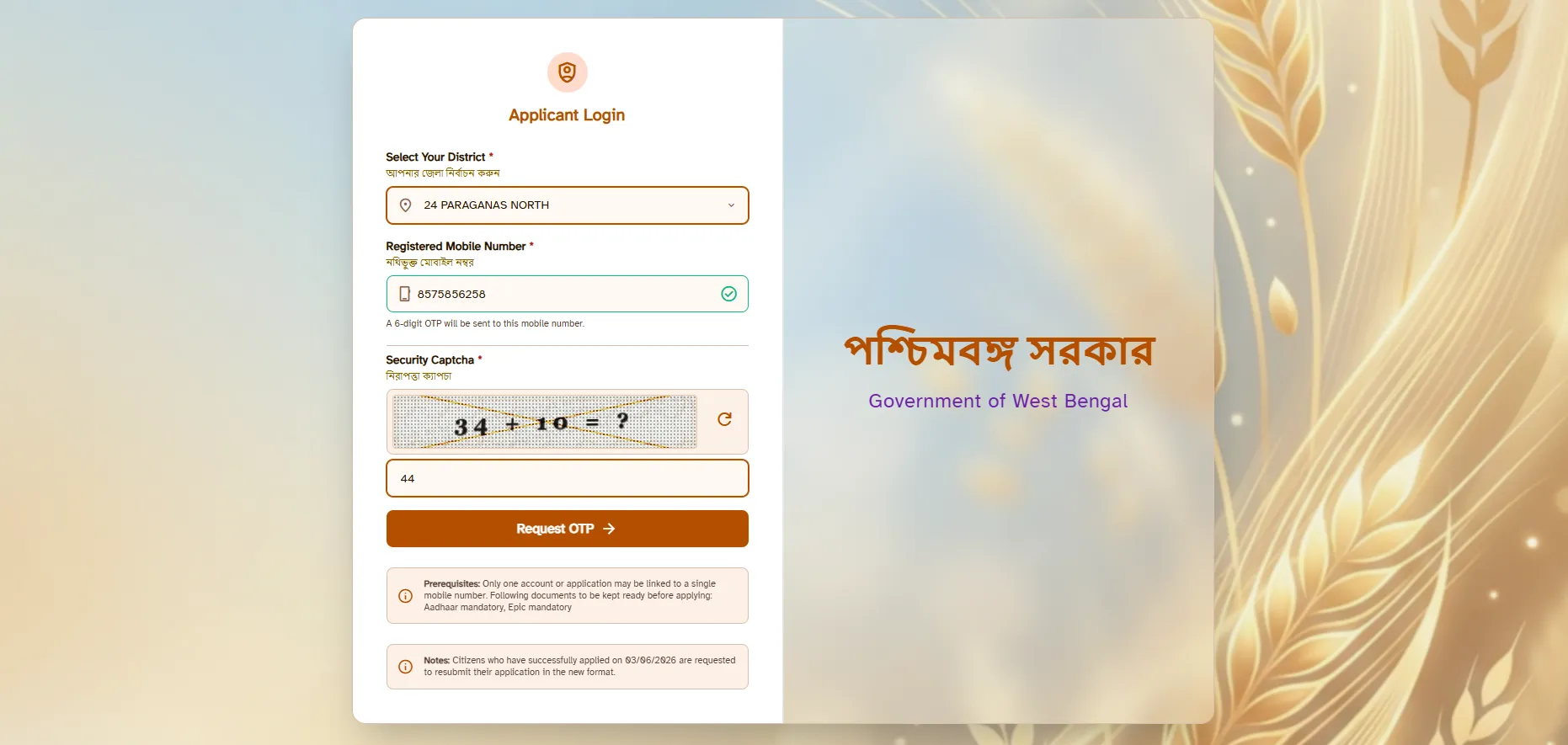
Step 3: Fill in the Head of Family basic details
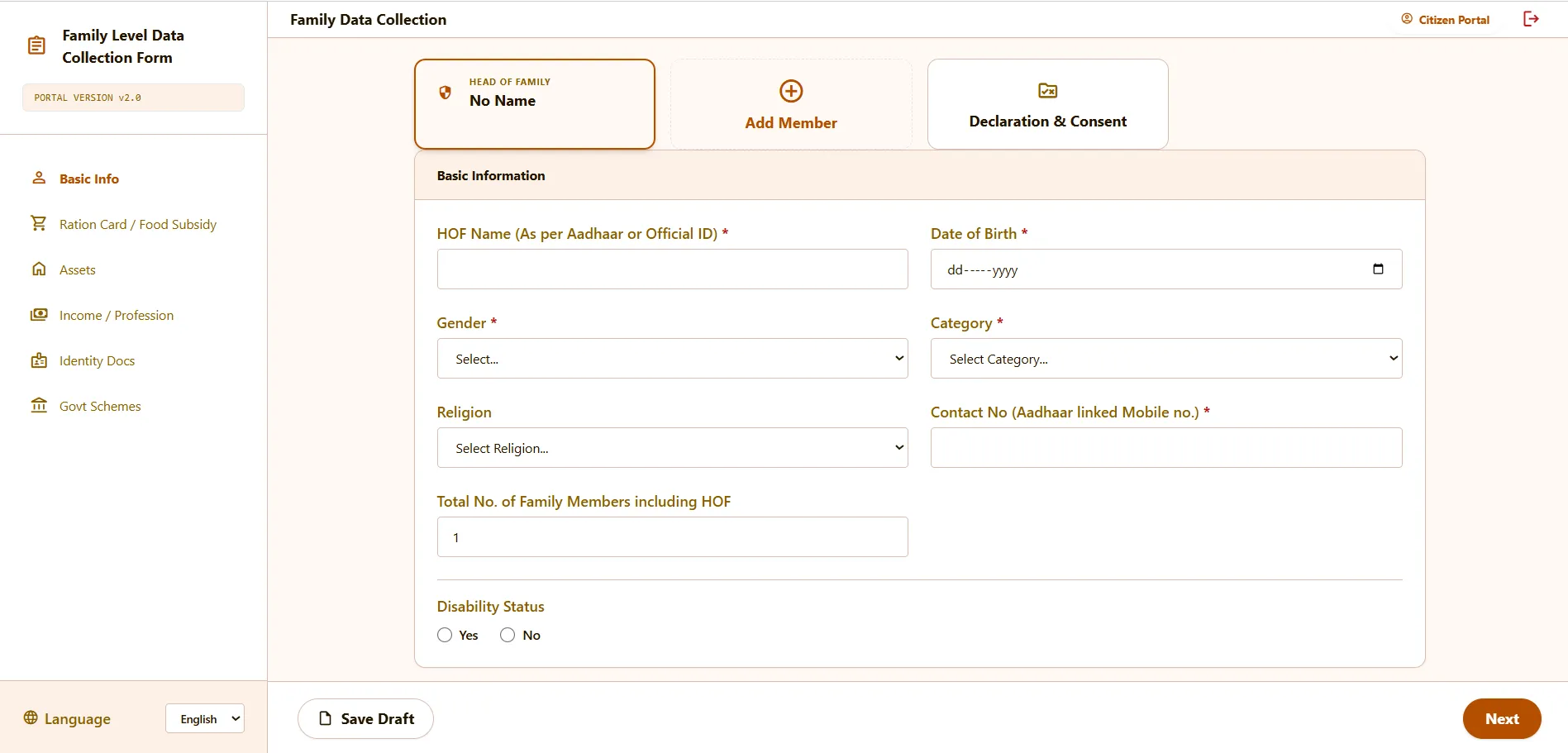
After OTP verification, the Family Data Collection form will open on your screen. This is the first main page of the application process for the Head of Family.
On this page, you need to fill in the details in four parts. These include Basic Information, Aadhaar Card Details, Family Demographics and Address, and Voter Card Details.
Make sure you enter all the information carefully and exactly as per Aadhaar or other official records. Once all four sections are completed correctly, you can move to the next step of the form.
Basic Information collection
In this section, fill head of the family basic information. in the name of the Head of Family exactly as it appears on Aadhaar or any official ID. Then enter the date of birth, gender, category, and religion and disablity status carefully.
You also need to provide the Aadhaar-linked contact number, the total number of family members including the Head of Family, and the disability status if applicable. Make sure all details are entered correctly before moving ahead.
Once everything is filled in, review the information once and click on the Next button to continue to the next section of the form.
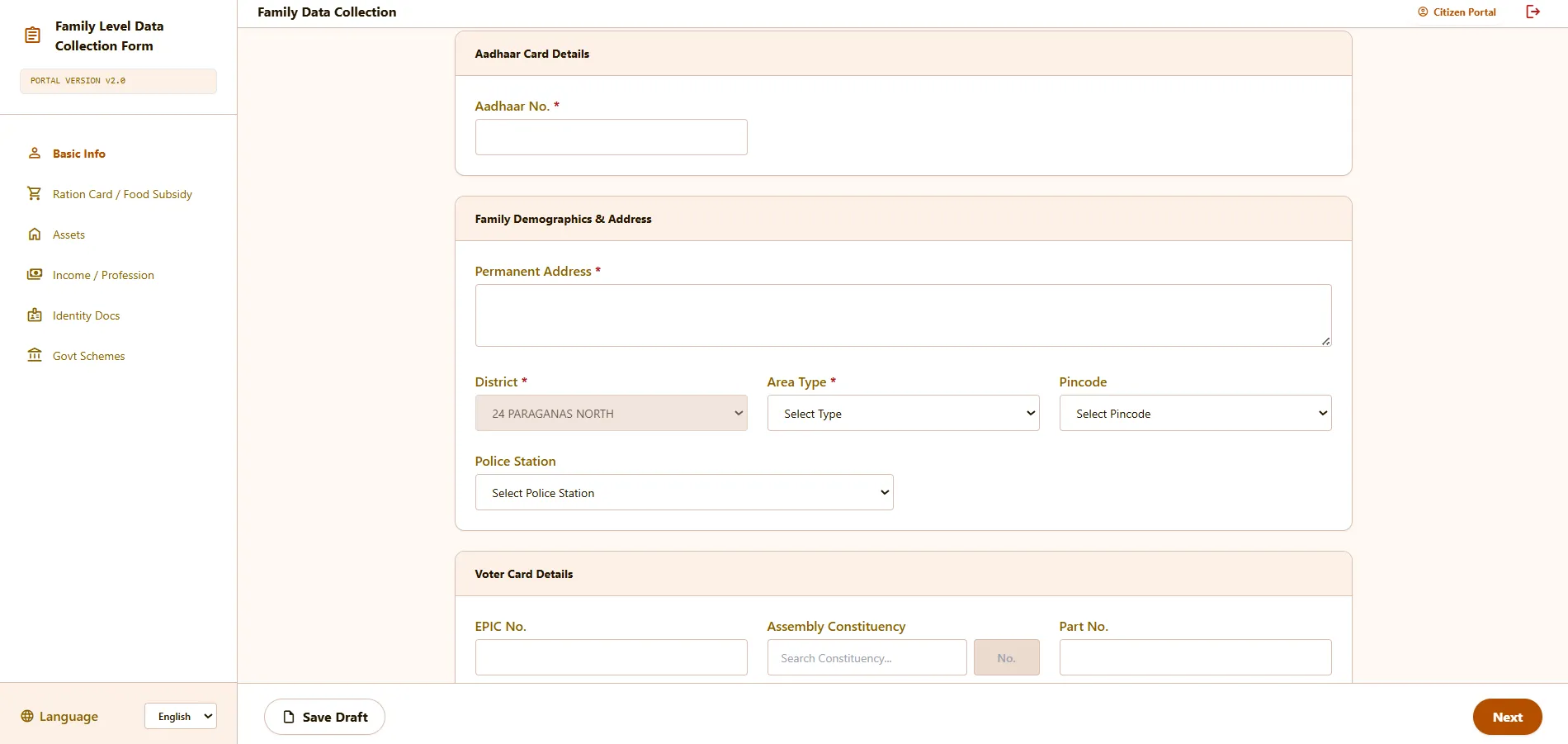
Aadhaar Card Details
In this part, enter the Aadhaar number of the Head of Family carefully. Make sure the number is correct, because it is an important identity detail in the form.
Family Demographics & Address
Next, fill in the permanent address of the family. Then select the district, area type, pincode, and police station from the available options. Make sure all address details are entered correctly before moving ahead.
Voter Card Details
After that, enter the voter card details of the Head of Family, such as EPIC number, assembly constituency, and part number. These details should match the voter card information as closely as possible.
if you dont know your part no then you can search through your EPIC no easily through electoralsearch.eci.gov.in copy from there and paste here.
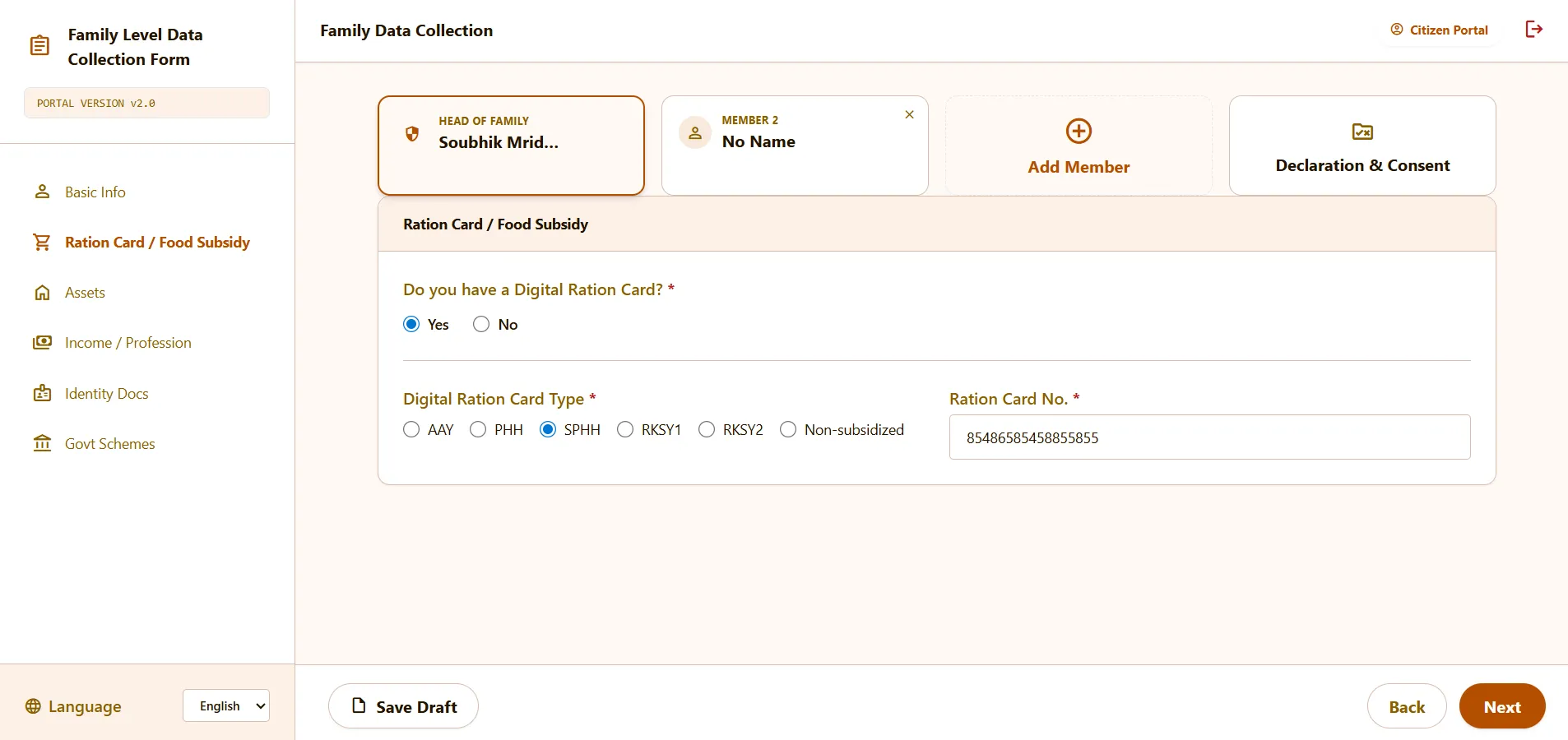
Step 4: Enter the ration card or food subsidy details
In this section, you need to confirm whether the family has a digital ration card. If the family has a digital ration card, select Yes. If not, select No and continue based on the available option in the form.
If you select Yes, you will need to provide more ration card details. Here, choose the correct digital ration card type, such as AAY, PHH, SPHH, RKSY1, RKSY2, or Non-subsidized, based on the actual card available for the family.
After that, enter the ration card number carefully in the required field. Make sure the ration card type and number are entered correctly before clicking on the Next button to move to the next section of the form.
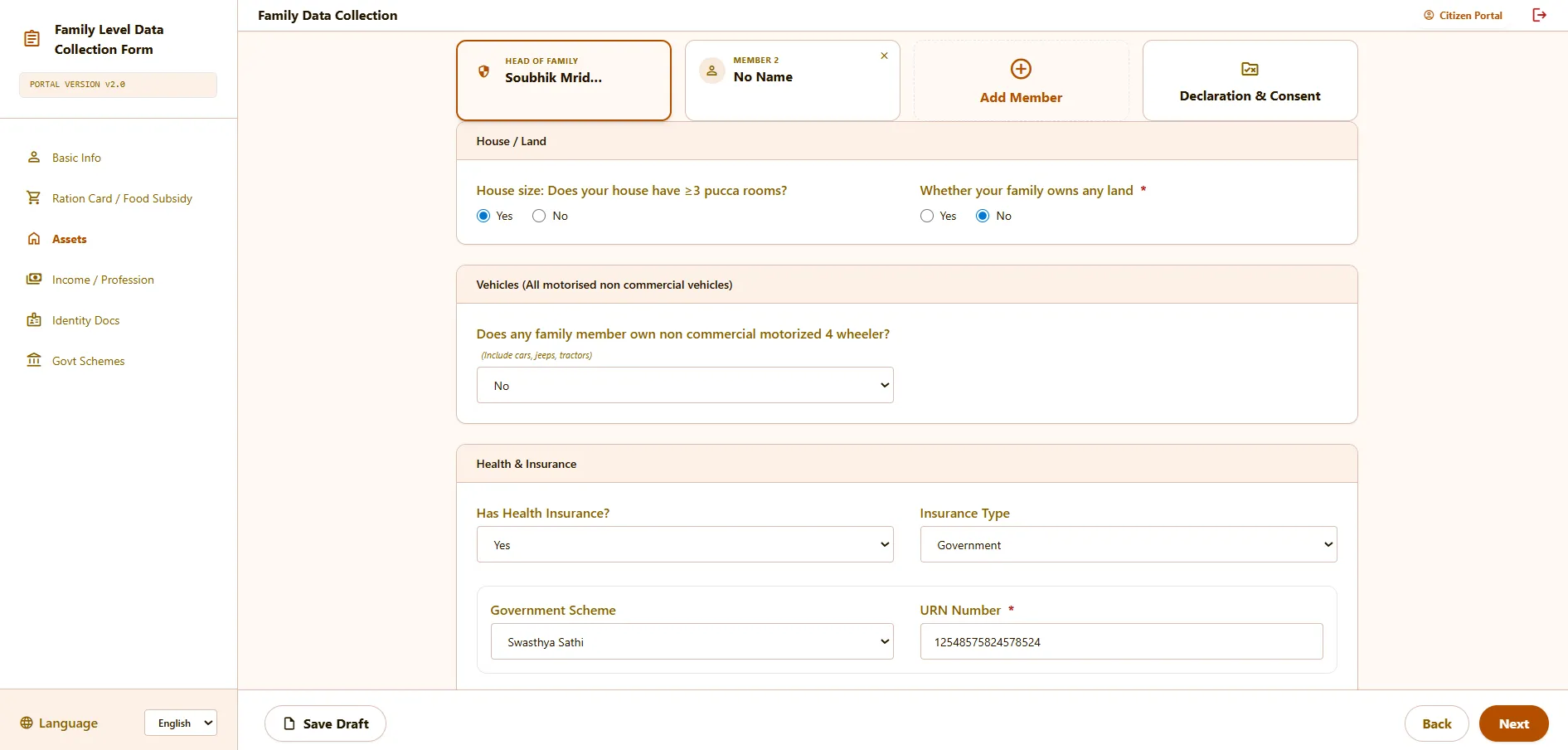
Step 5: Fill in the assets and health insurance details
In this section, you need to provide information related to the family’s house, land, vehicle ownership, and health insurance. Fill in each answer carefully based on the actual details of the family.
If the form asks about house size, land ownership, or non-commercial four-wheeler ownership, select the correct option from the available choices. Make sure these details are entered correctly before moving to the health insurance part.
In the health insurance section, first select whether the family has health insurance or not. If you select Yes, a new option will appear asking whether the insurance is Private or Government.
If the insurance type is Government, then you need to choose the correct government scheme, such as Swasthya Sathi, and enter the card or URN number in the required field. If the insurance type is Private, then no additional government scheme details are needed.
Once all the information is filled in correctly, review everything once and click on the Next button to continue to the next section of the form.
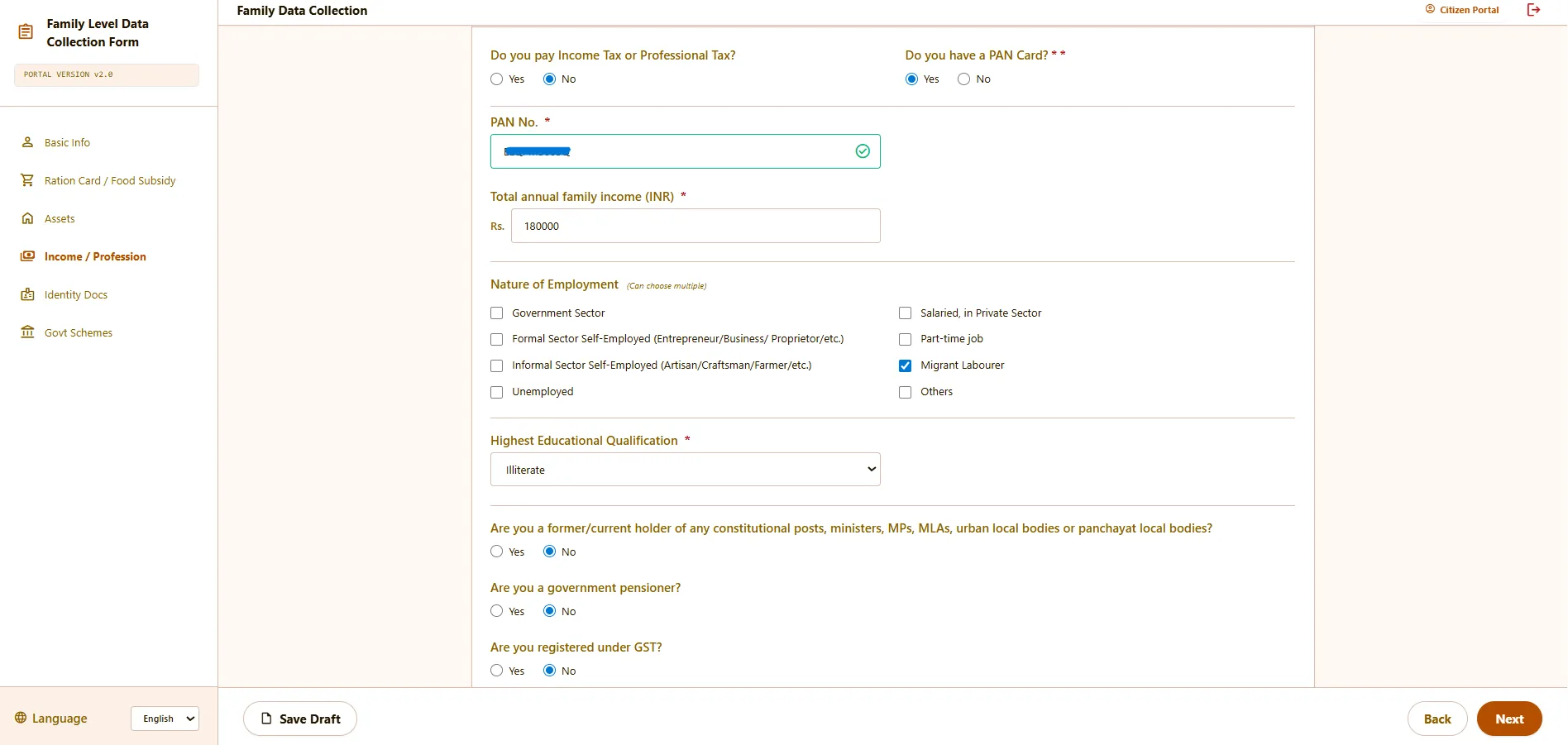
Step 6: Fill in the income and profession details
In this section, you need to provide information related to the family’s income, PAN card, profession, education, and other related details. Fill in each field carefully based on the actual information of the family member.
First, select whether the family pays income tax or professional tax. After that, mention whether the person has a PAN card. If the answer is Yes, then enter the PAN number in the required field.
Next, enter the total annual family income in rupees. Then choose the correct nature of employment from the available options, such as self-employed, migrant labourer, unemployed, private salaried, or any other applicable category.
After that, select the highest educational qualification from the dropdown menu. The form will also ask a few more important questions, such as whether the person is a former or current holder of any constitutional or public post, whether the person is a government pensioner, and whether the person is registered under GST. Select the correct answer for each one carefully.
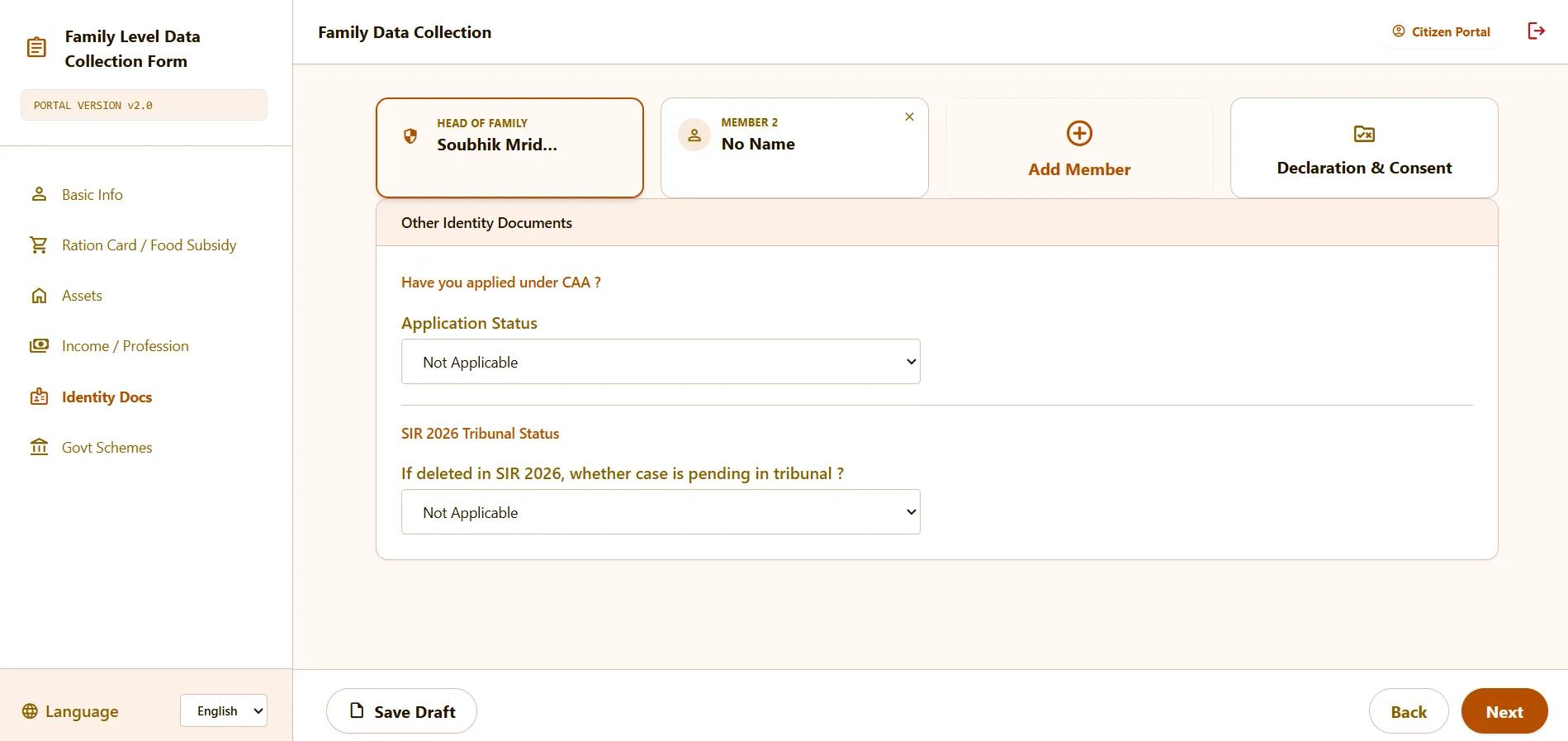
Step 7: Fill in the other identity document details
In this section, you need to provide some additional identity-related information. The form will ask whether you have applied under CAA and what the application status is. Select the correct option from the dropdown list based on your actual status.
The form will also ask about the SIR 2026 Tribunal Status. If the name was deleted in SIR 2026 and the case is pending in tribunal, then choose the correct option from the list. If this does not apply to you, you can select Not Applicable.
Before moving to the next step, check both answers carefully and make sure the selected options are correct. Once everything is filled in properly, click on the Next button to continue.
Step 8: Fill in the government pension and scheme details
In this section, you need to mention whether the family member is receiving any government scheme benefits through DBT. Select the correct option from the dropdown list based on the actual status.
If the person is already receiving any government pension or scheme benefit, choose the appropriate option carefully. If not, select No or the option that applies to your case.
Make sure the answer is correct before moving ahead, because this information is part of the family’s final scheme details. After checking it once, click on the Next button to continue.
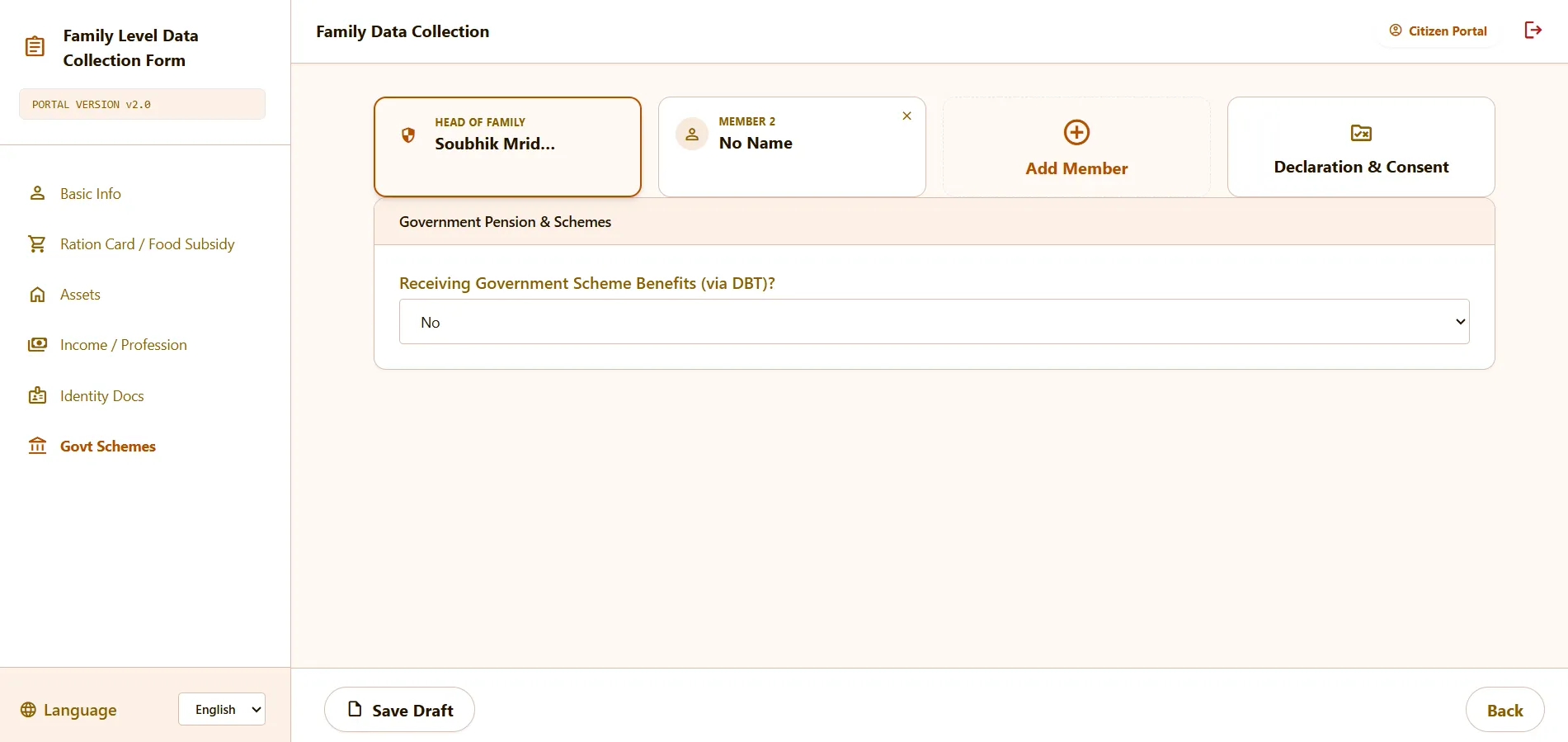
After completing everything in the Head of the Family tab, do not forget to click Save Draft. Otherwise, your filled information may be erased.
Step 9: Fill in the member data collection details
After completing the Head of Family details, click on the Add Member option to enter the information of other family members. Once a new member tab opens, you need to fill in that member’s details in the same way.
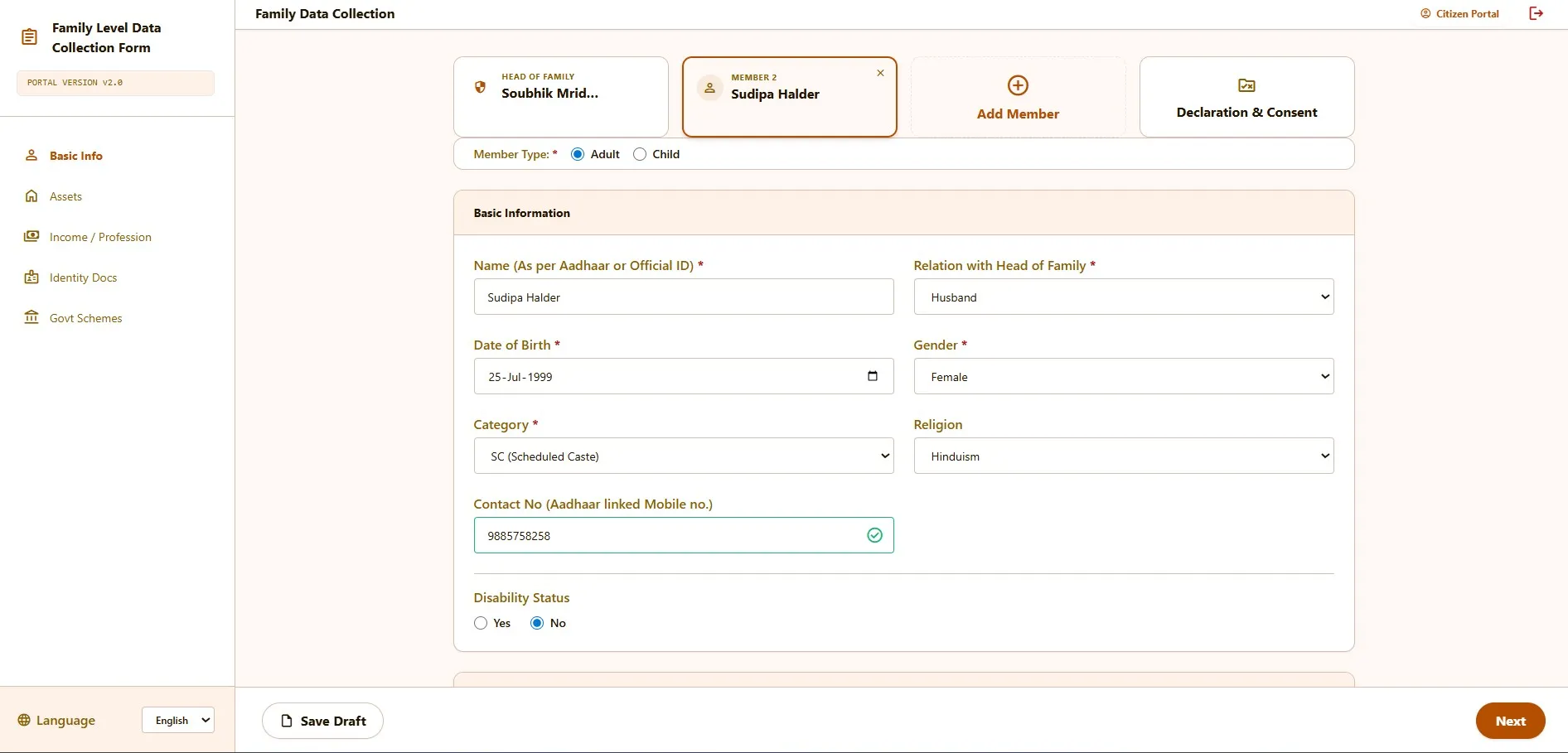
Member Basic Information
First, select the member type. Here, you need to choose whether the family member is an Adult or a Child.
After that, enter the basic information of the family member. This includes the name as per Aadhaar or official ID, relation with the Head of Family, date of birth, gender, category, religion, Aadhaar-linked contact number, and disability status.
Make sure all the details are entered carefully and correctly before moving to the next section. Once everything is filled in properly, you can continue to the next step of the member data collection form.
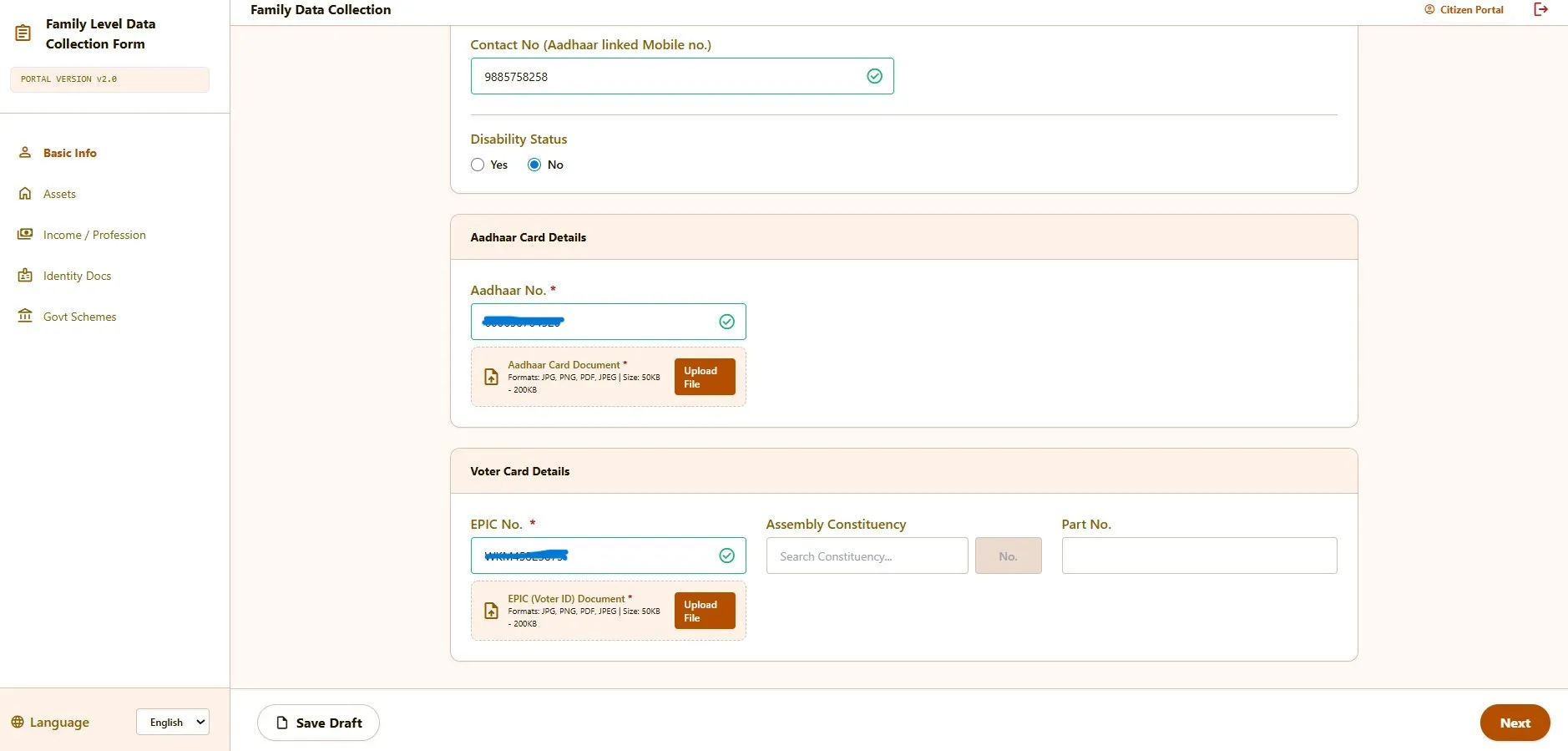
Member Aadhar & Votar Details
In this section, you need to enter the Aadhaar and voter card details of the family member carefully. First, type the Aadhaar number in the Aadhaar Card Details section. Make sure the number is entered correctly as per the official document.
After entering the Aadhaar number, you also need to upload the Aadhaar card document in the required format. Before uploading, check the allowed file type and size limit shown in the form.
Next, go to the Voter Card Details section and enter the EPIC number. You may also need to fill in the Assembly Constituency and Part Number according to the voter card details of that member.
After entering the voter card number, upload the voter ID document as well in the required format. Make sure both the Aadhaar and voter card files are uploaded properly before moving to the next step.
Once everything is filled in and uploaded correctly, review the details once and click on the Next button to continue.
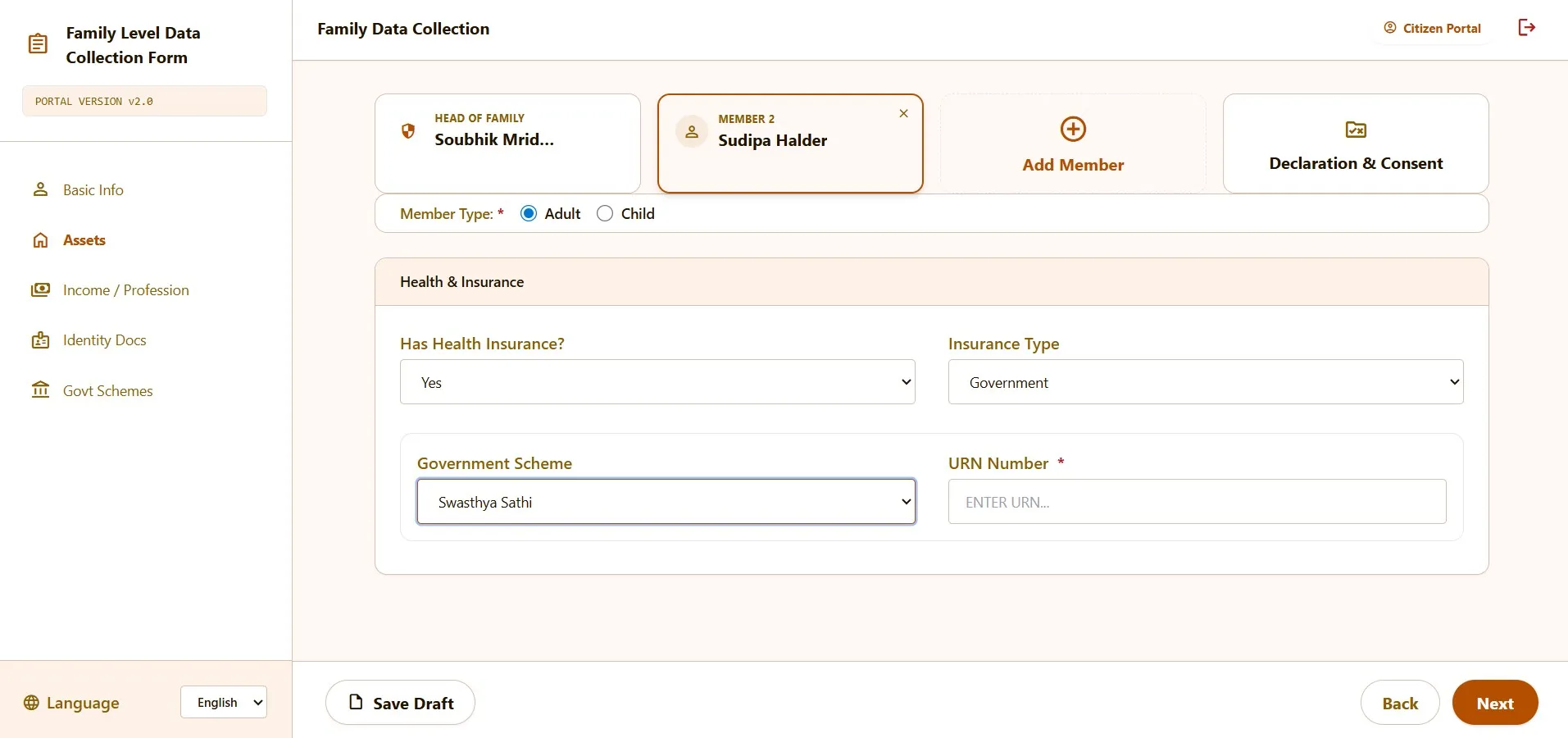
Step 10: Fill in the member health insurance details
In this section, you need to mention whether the family member has health insurance or not. First, choose Yes or No in the health insurance field based on the actual status of that member.
If you select Yes, the form will ask for the insurance type. Here, you need to choose whether the insurance is Private or Government.
If the insurance type is Government, then select the correct government scheme, such as Swasthya Sathi, and enter the URN number in the required field. If the insurance type is Private, then no government scheme details are needed.
Make sure all the health insurance details are entered correctly before moving ahead. Once everything is complete, click on the Next button to continue to the next step.
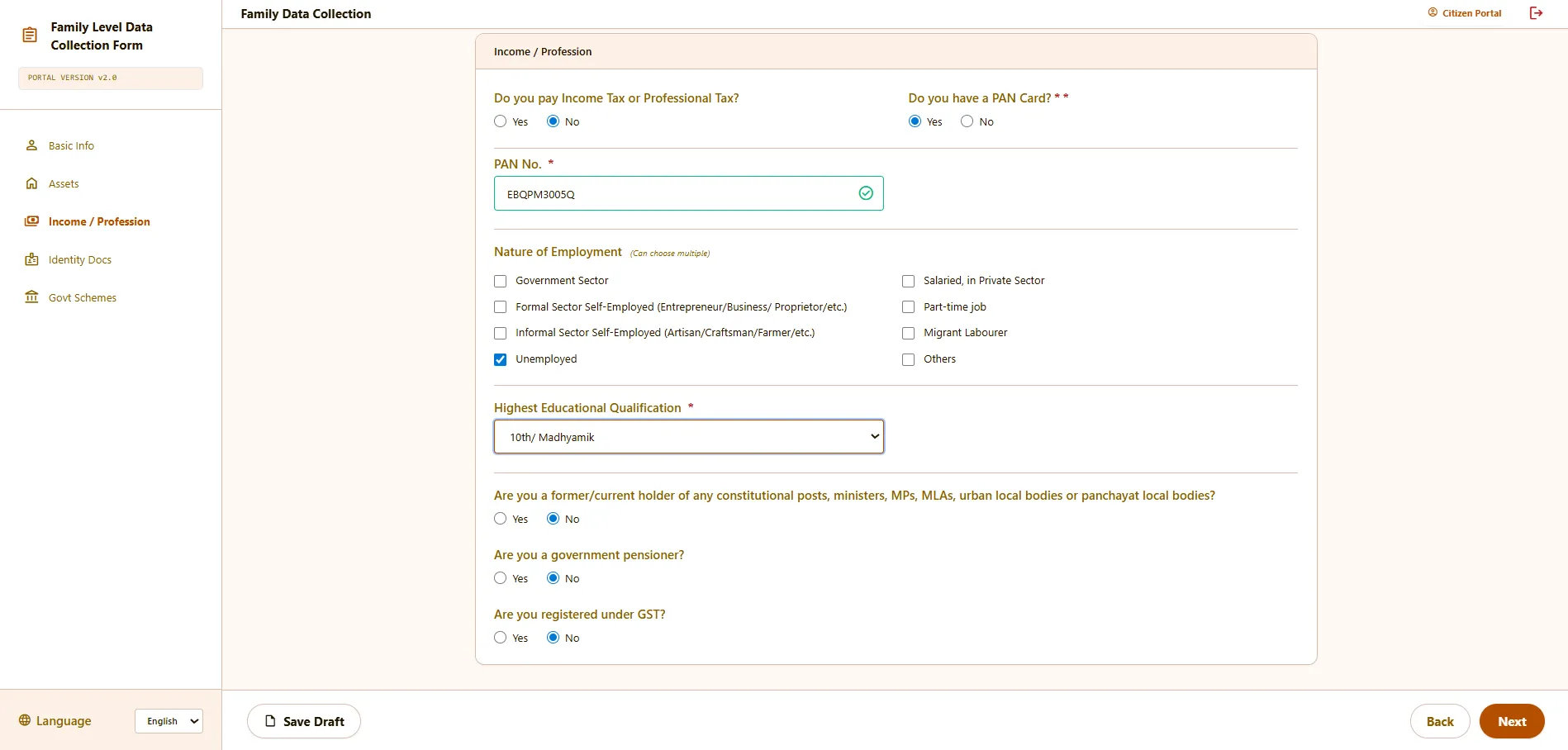
Step 11: Fill in the member income and profession details
Here, you need to mention whether the family member pays income tax or professional tax. You also have to select whether the person has a PAN card. If the answer is yes, then enter the PAN number carefully.
Next, choose the correct employment type from the available options. If more than one option matches, select the ones that apply to that member.
After that, select the highest educational qualification. The form will also ask a few additional questions about pension, GST registration, and whether the person holds or has held any public or constitutional post.
Before moving ahead, review everything once and then click on the Next button.
Step 12: Fill in the other identity document details
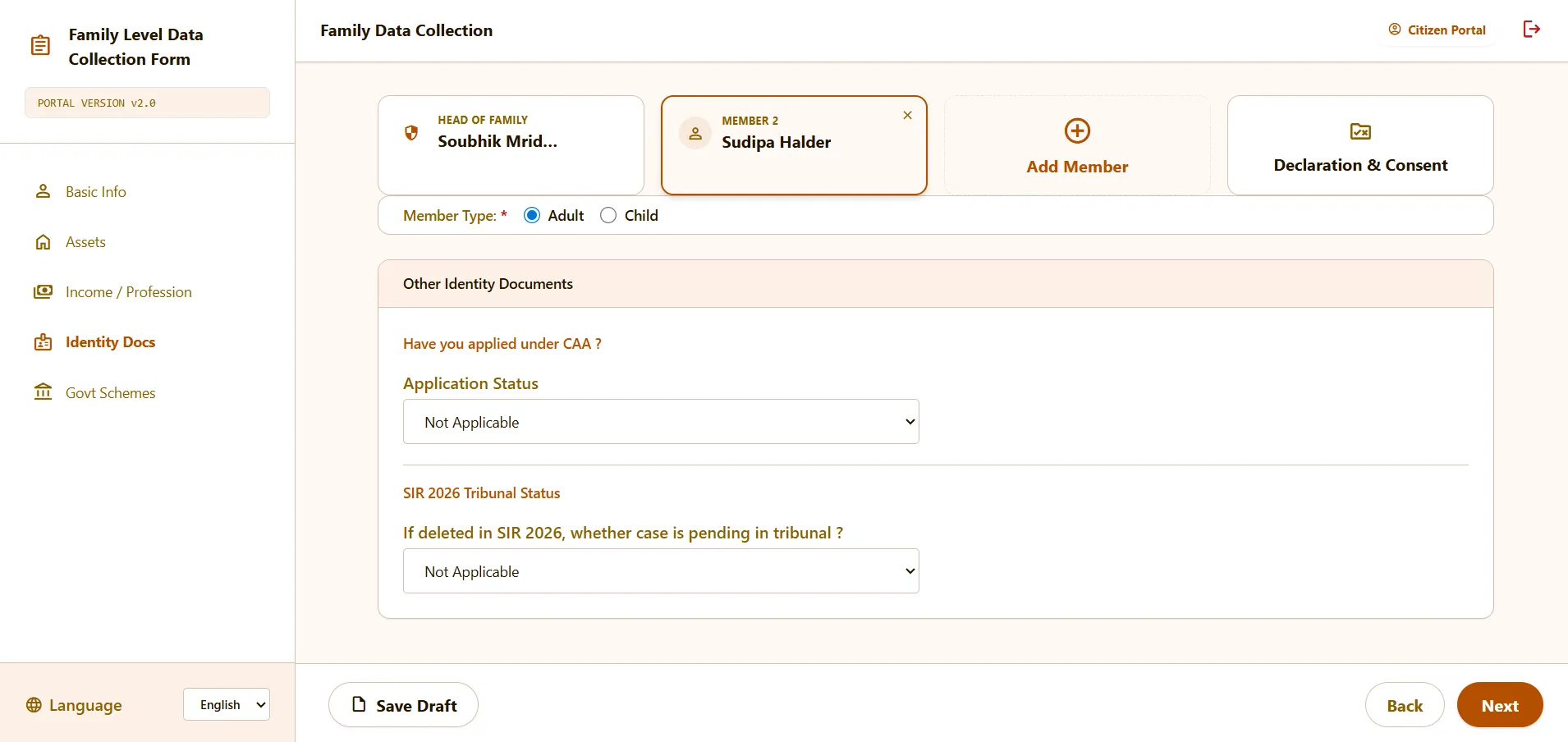
Now you need to provide some additional identity-related information for the family member. The form will ask whether the person has applied under CAA and what the current application status is. Select the correct option from the dropdown list.
You will also see another field related to SIR 2026 Tribunal Status. If this applies to the member, choose the correct status from the list. If it does not apply, you can keep the option as Not Applicable.
Before moving ahead, check both answers once so that no wrong option is selected by mistake. After that, click on the Next button to continue.
Step 14: Fill in the government pension and scheme details
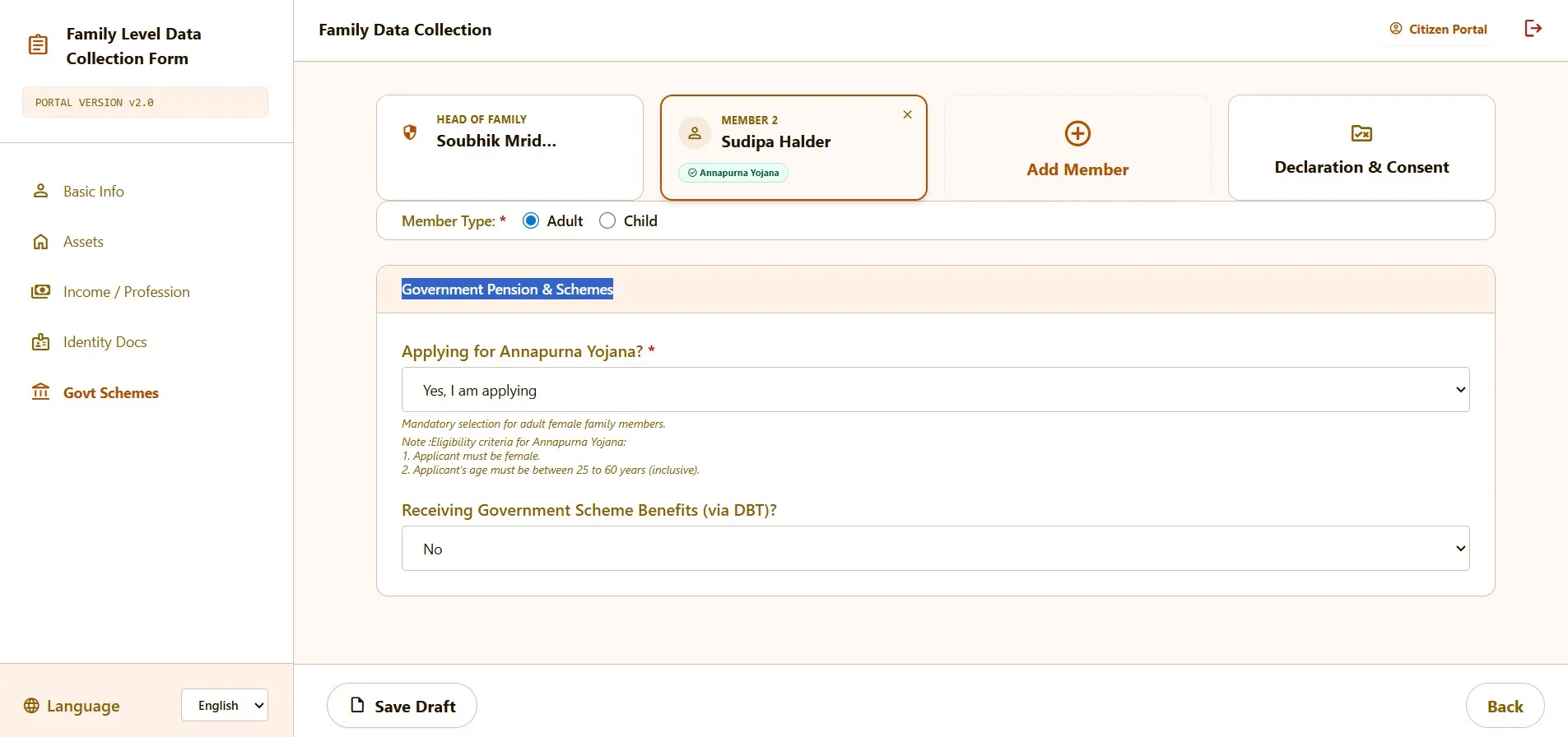
At this stage, you need to mention whether the family member is applying for Annapurna Yojana or not. Choose the correct option from the dropdown list based on the eligibility and application status of that member.
You may also notice a note below the field that mentions the eligibility conditions for Annapurna Yojana. Read those points carefully before selecting the option, especially for adult female family members.
After that, select whether the person is already receiving any government scheme benefits through DBT. Choose the correct answer from the dropdown menu before moving ahead.
Once both details are filled in properly, review them once and click on the next button to continue.
Step 15: Save the draft and submit the application
After completing all the details for the Head of Family and other family members, click on the Save Draft button once. This helps make sure that all the information you entered is saved properly before final submission.
Next, click on the Declaration & Consent tab. A new page will open where you need to read the declaration carefully and then tick the checkbox to confirm that all the information provided is correct.
Once the checkbox is selected, click on the Submit Application button. After that, your application will be submitted successfully.

Final Step: Check the application submission details
After clicking on Submit Application, the confirmation page will appear on your screen. This page will show that your application has been successfully submitted.
Here, you will also see your temporary application ID, the head of family name, and the submission date and time. Please note down the application ID carefully, because it will be needed for future reference.
Once you have saved the application ID, click on the OK, Done button to complete the process. After that, your Annapurna Bhandar application will be officially submitted.
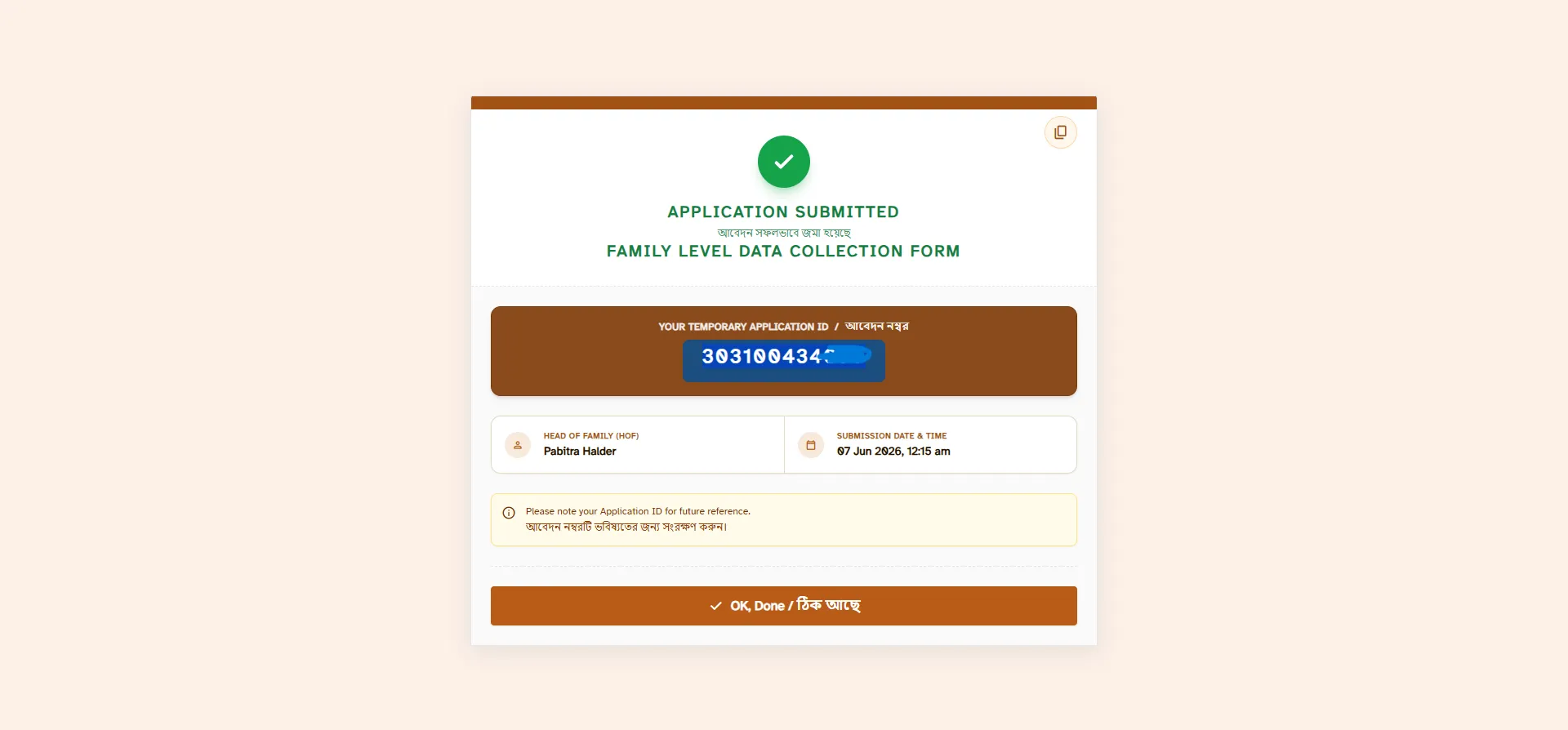
After the application is submitted, the confirmation page will appear on the screen. This page shows that the form has been submitted successfully and displays the temporary application ID, head of family name, and submission date and time.
Make sure to note down the application ID carefully for future reference and status tracking. Since this is the final screen, no further action is usually needed except clicking the OK, Done button to complete the process.